By Glyf
Confidence & Review Thresholds
One line item, misread by a digit, is enough to throw off a quarterly expense report. Someone exports before checking, the wrong number sits in a spreadsheet for six weeks, and it resurfaces during a reconciliation nobody enjoys. The fix isn't reviewing every field on every document. That erases the entire point of automated extraction. The fix is knowing which fields need a look before export and which ones are safe to move past. That's the job of an invoice extraction confidence score.
Glyf doesn't hand you a percentage to interpret on every field. Review thresholds decide, per document, whether something critical is missing, then route only that document into a queue you can clear in one focused pass.
What an invoice extraction confidence score checks for
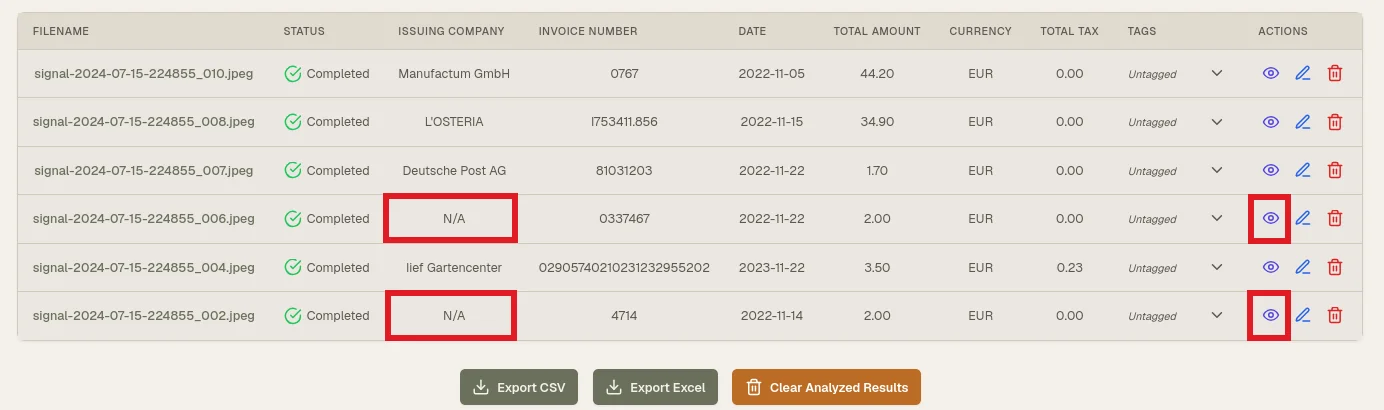
A document lands in the Needs Attention queue the moment one of seven invoice-level fields comes back empty: Invoice Number, Invoice Date, Total Cost, Currency, Issuing Company, Category, or Short Description. Line items get their own check: a document is flagged if no line items were found at all, or if any single line item is missing its description or its line total. Nothing more complicated than that. No hidden score, no percentage to guess at. If one of those specific fields is blank after extraction, the document gets flagged and dropped into a dedicated view reachable straight from the dashboard widget. Everything else (fields that came back filled in, even on an odd-looking receipt) moves forward without extra friction. The flag clears itself the moment you fill in what's missing and save, so the queue only ever shows documents that still need something from you.
Why do some documents need a second look and others don't?
Documents vary wildly, and treating them all the same is where review time gets wasted. A clean, digital PDF from a recurring vendor extracts cleanly almost every time. The layout doesn't shift, the fields sit where expected. A photo of a crumpled receipt taken under bad lighting is a different problem. Faded ink, cut-off corners, and handwriting all make individual fields harder to read with confidence. Reviewing both documents at the same intensity means wasting time on the easy one or under-checking the hard one. The review threshold sorts that out on its own: only documents where a critical field couldn't be read confidently get pulled into the queue. You spend your attention where the document actually earned it, not on the ten clean invoices sitting quietly next to the one that didn't.
What reviewing a flagged document actually looks like
Human-in-the-loop extraction sounds abstract until you open one flagged document. Click through from the Needs Attention widget and you land in the Invoice Drawer: the original file on one side, every extracted field on the other, each one editable by clicking straight into it. There's no separate edit mode to switch on first. Fill in whatever came back blank, save, and the flag clears immediately. If a fresh extraction seems worth trying instead of typing the value by hand, you can re-run analysis on the same stored document without re-uploading it, though a short cooldown applies between attempts on the same file. Either way, the correction happens in the screen where you were already reviewing the record. Not in a separate cleanup pass at month's end.
Reducing corrections without pretending errors disappear
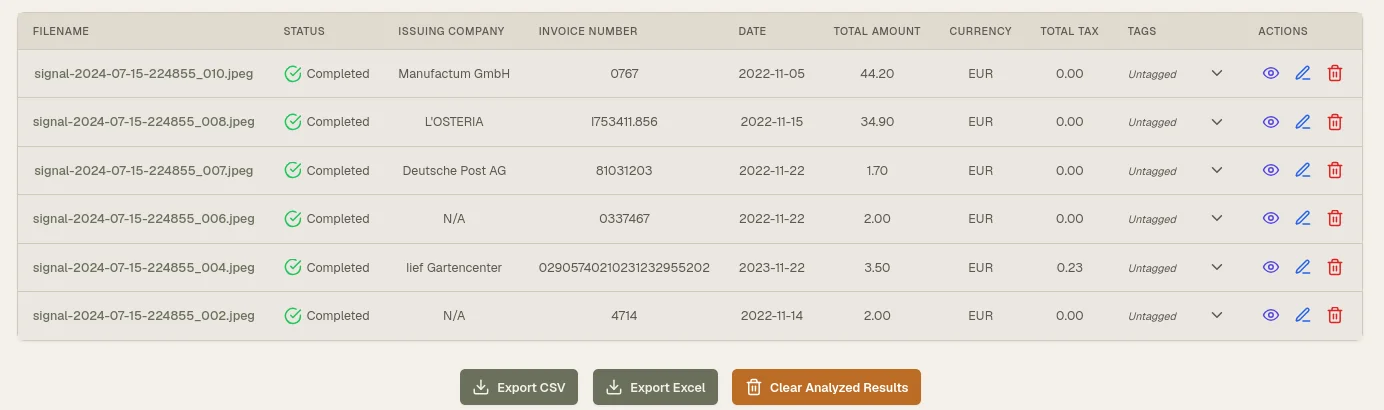
Reducing corrections isn't about pretending fields never come back wrong. It's about not asking you to hunt for the ones that did. Standard invoices and receipts extract at over 95% accuracy, which means most fields need no correction at all. But the remaining share still needs somewhere to land, and that's the entire purpose of the flag. Skip the threshold and you're left with two bad options: review every document at full intensity, which is slow, or trust the batch and risk a wrong total slipping into a report, which is worse. The threshold hands you a short, specific list of documents to open instead of a vague hunch that you should probably double-check everything before export. On a batch of thirty or forty files, that's a real time save, not a theoretical one.
Where confidence signals stop and your judgment starts
A flag tells you something is missing. It doesn't certify that a filled-in field is correct. That distinction matters: a document with all seven critical fields present can still contain a misread digit or a slightly off vendor spelling, especially on a rough scan. Review thresholds are built to catch missing data, not to sign off on every field that happened to come back non-empty. That's why every field in the drawer stays open for editing, flagged document or not, rather than locking down the ones that technically passed. If a few files in a batch look especially rough (heavy creases, poor lighting, handwritten totals), it's worth opening those even without the flag attached. For the fuller picture of how Glyf's quality controls fit together, see the accuracy hub.
Part of the same review flow as the rest of Glyf
Confidence and review thresholds aren't a standalone gimmick. They sit inside the same loop as everything else: files get validated before upload, structured fields get extracted, and results land in a table you can open, correct, and save. For the step-by-step walkthrough of that loop, see Review & correction flow. For the broader engine behind the extraction itself, go back to Data Extraction Engine. And for the hands-on version of the review process across every document type, see the guides hub.
FAQ
Does Glyf assign a visible confidence score to every field? No. Instead of a per-field percentage, Glyf checks for a specific set of critical fields and line item conditions, then flags the document as Needs Attention if any are missing. That keeps the signal simple: flagged or not.
What happens if I ignore a Needs Attention flag? The document stays flagged and stays in the queue. Nothing auto-exports around it, and nothing gets silently filled in: the missing field waits until you edit it in the Invoice Drawer and save.
Can a document without any flag still contain a mistake? Yes. The flag only tracks missing critical fields, not the correctness of fields that came back filled in. A quick scan of anything from a low-quality scan or photo is still worth the extra few seconds.