By Glyf
Review & Correction Flow
Extraction is only useful if you can trust what gets exported.
Glyf makes review fast: every document lands in a results table, you open one full-screen drawer, correct anything inline (no special mode), and save.
This page explains what happens after extraction — and how to review, correct, and keep moving.
After extraction completes
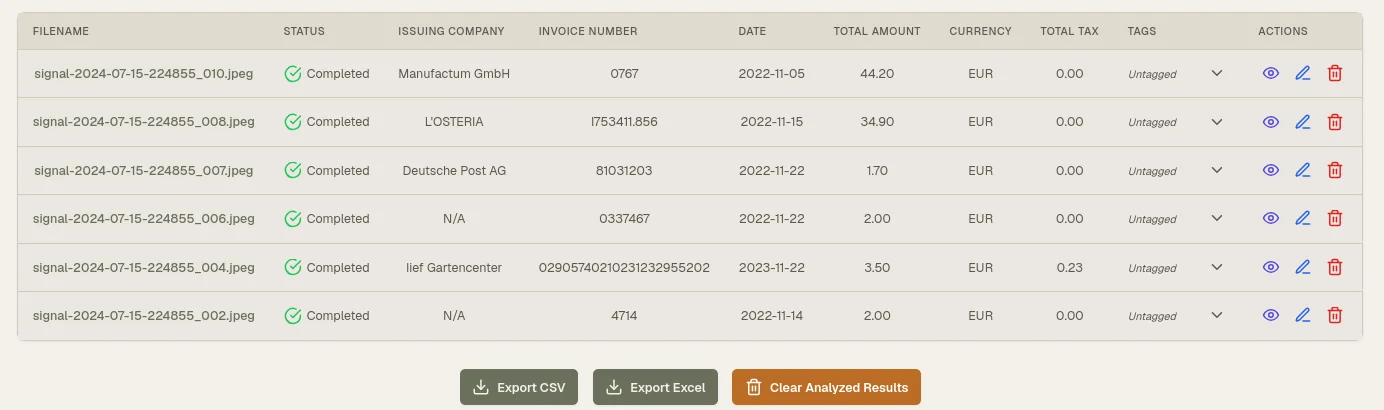
Every document in the batch appears as a row in the results table. You’ll see:
- Filename
- Status: Success or Error
- Issuing Company
- Invoice Date
- Total Amount
Click any row to open the Invoice Drawer.
If you want the “how does it extract these fields?” deep dive, start here: Data Extraction Engine
The Invoice Drawer (where review actually happens)
The Invoice Drawer is a full-screen panel with two sides:
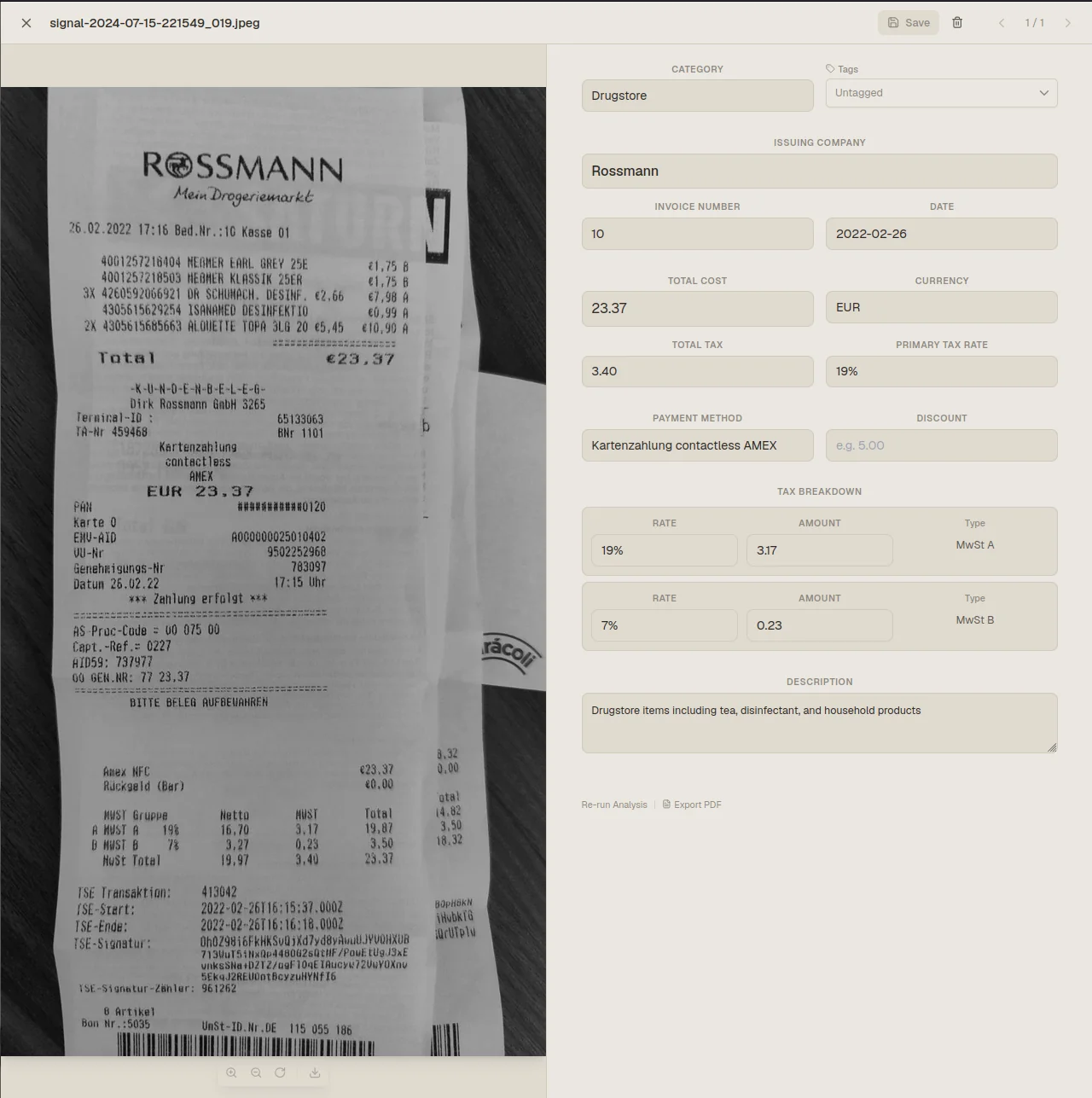
- Left: the original document image, with pan + zoom for close inspection
- Right: all extracted fields, grouped by category
What you can review and edit
On the right side, you’ll find fields like:
- Category and Tags
- Issuing Company
- Invoice Number
- Date
- Total Cost
- Currency
- Tax Amount
- Tax Rate
- Payment Method
- Discount Amount
- Tax Breakdown (itemized, if present)
- Short Description
- Line Items (when present)
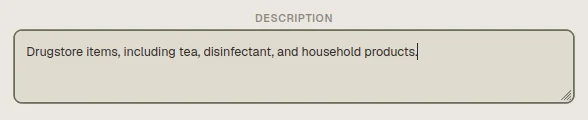
All fields are always editable. Click any field and start typing. There’s no “edit mode” to switch on.
Renaming files (without breaking extensions)
The filename shown at the top of the drawer can be renamed. Glyf automatically preserves the file extension when you rename, so you don’t end up with receipt-final-final-v3 and no idea what it is.
Unsaved changes protection
If you close the drawer or jump to another invoice with unsaved edits, Glyf will prompt you to confirm before discarding changes.
Needs Attention flag (your review queue)
Glyf automatically flags a document as Needs Attention if any critical fields are missing after extraction:
- Invoice Number
- Invoice Date
- Total Cost
- Currency
- Issuing Company
- Category
- Short Description
- Line Items
Flagged documents appear in a dedicated queue via the Needs Attention filter in Analysis History. That means you can review incomplete extractions in one focused pass instead of hunting through the table.
Once all critical fields are filled in and saved, the flag clears automatically.
For how Glyf keeps accuracy consistent (and why certain fields get treated as “critical”), see: Accuracy & quality controls
Re-run analysis (retry without re-uploading)
If a result looks off, you can ask Glyf to try again without uploading the file again.
- Click Re-run Analysis in the drawer footer
- Confirm the prompt (re-analysis counts as 1 file + 1 batch against plan limits)
- Glyf re-processes the stored copy of the document and refreshes extracted fields
- A 10-second cooldown applies between re-analysis attempts on the same document
This is useful when a receipt photo is readable but the first pass missed something — or when totals/tax need a second look.
Saving changes
Click Save in the drawer header to commit edits.
- Changes are saved immediately
- Updates appear right away in the history table
- Tags applied in the drawer are saved along with your field edits
Before you export, it’s worth doing a quick export sanity pass (especially for totals/tax): Export QA checks