By Glyf
How It Works
A receipt photo is not a spreadsheet row. Something has to look at the image, decide which number is the total, which line is tax, and which one is just a subtotal repeated for no good reason. That's the mechanical problem behind how to extract data from receipts, and it's the reason Glyf's workflow exists at all.
Glyf splits the process into four stages: Upload → Extract → Review → Export. Each stage has one job and hands off cleanly to the next, so you end up with spreadsheet-ready rows instead of a folder of PDFs you still have to type out by hand.
Want the condensed, three-step version instead? See Upload → Extract → Export. This page is the full walkthrough, stage by stage.
Stage 1: Upload
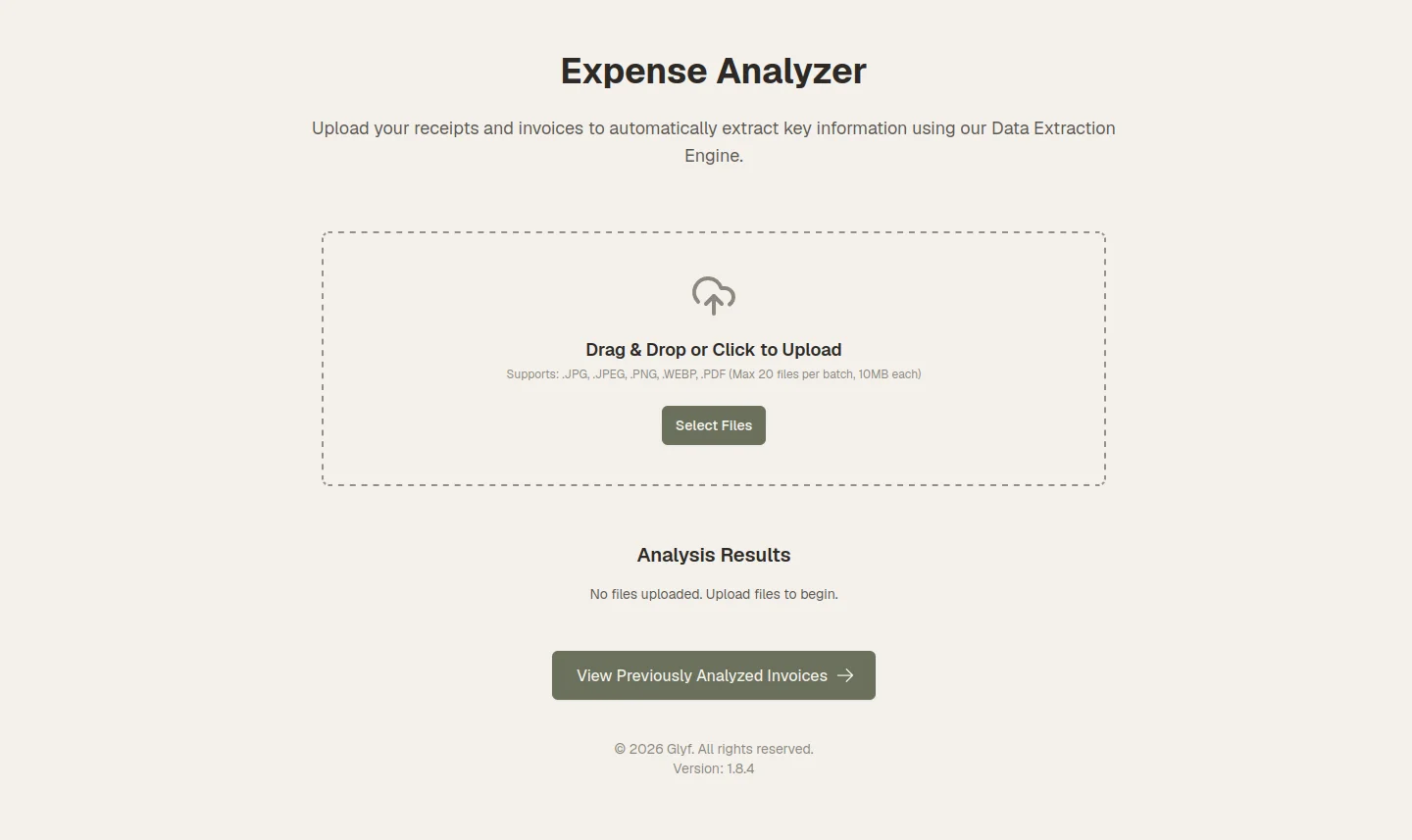
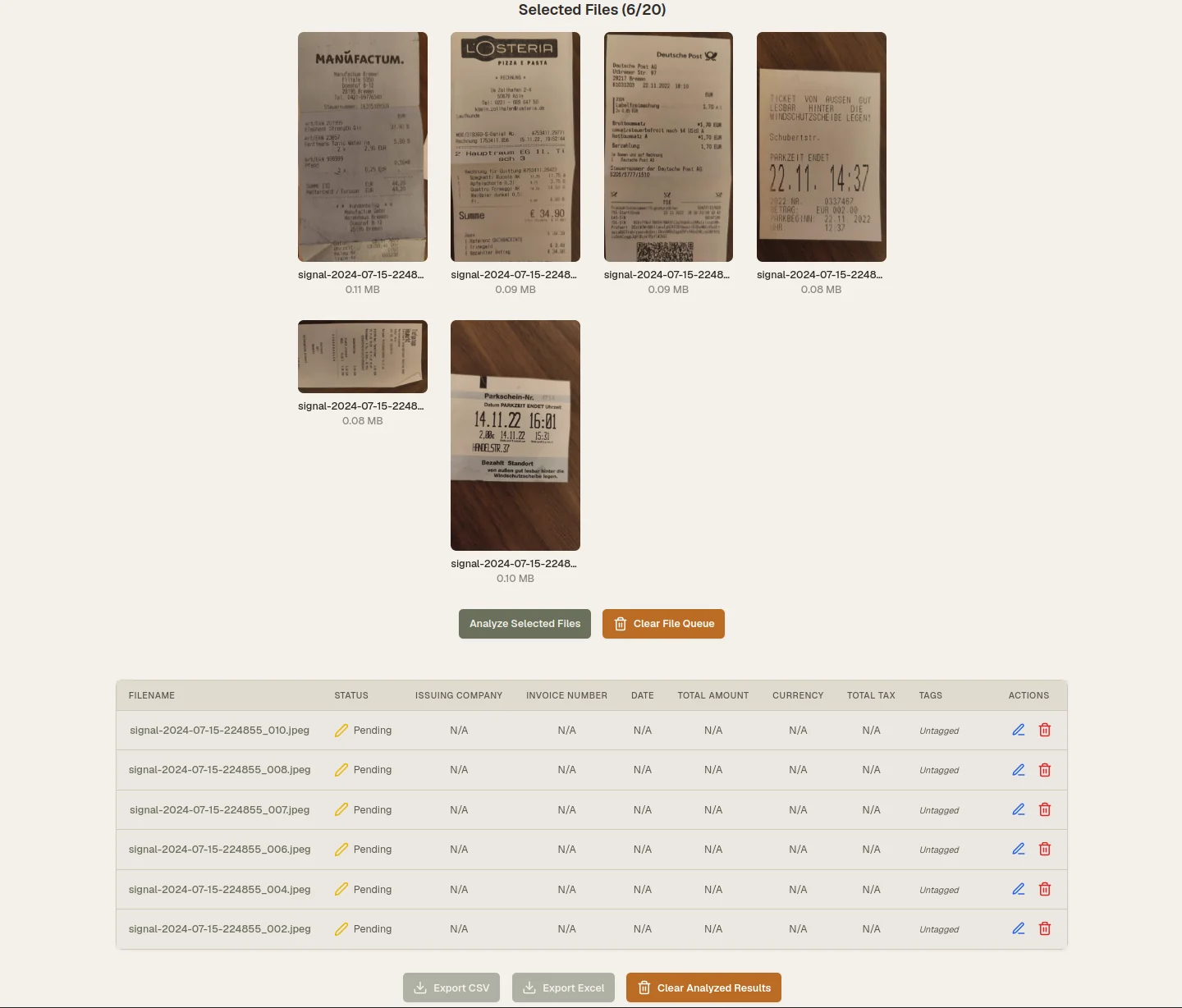
Uploading is a validation step disguised as a file picker. Open the analyzer and drag files onto the upload zone, or click Select Files to browse your device. Before anything is sent anywhere, Glyf checks each file against three rules: supported format (PDF, JPG, PNG, or WEBP), a 10MB size cap per file, and no duplicates already sitting in the queue. Files that pass appear as a thumbnail grid so you can confirm what you're about to process and remove anything that doesn't belong. Batch size is tied to your plan: up to 5 files at once on Free Trial and Starter, up to 10 on Advanced. None of this touches the extraction step yet. It just makes sure the batch that reaches the Data Extraction Engine is clean.
Stage 2: Extract, how to extract data from receipts automatically
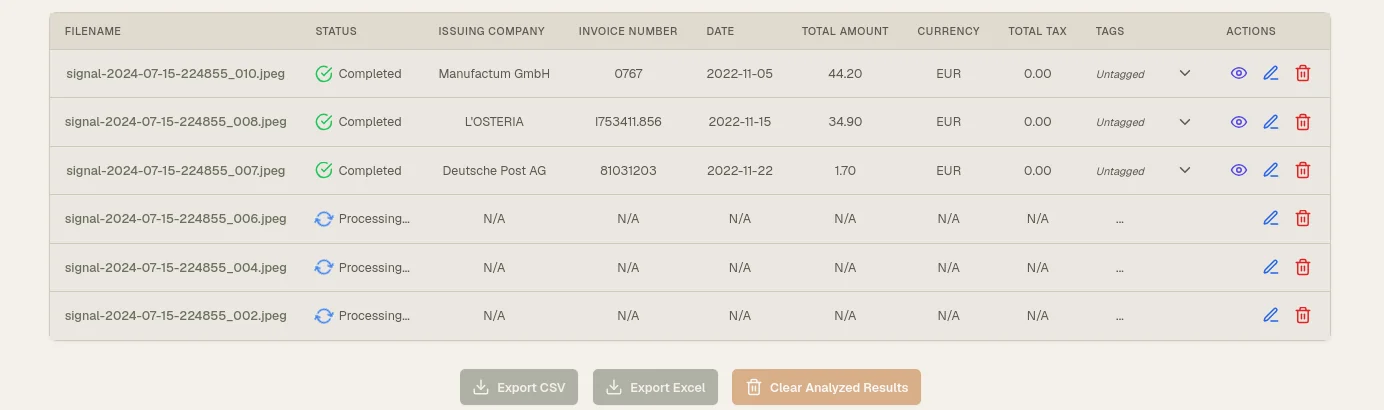
Click Analyze and Glyf sends the batch to the Data Extraction Engine, which processes each file and returns structured data instead of a wall of raw text. Twelve fields come back per document: Invoice Number, Invoice Date, Issuing Company, Category, Short Description, Total Cost, Currency, Primary Tax Rate, Tax Details, Line Items, Payment Method, and Discount Amount. Category and Short Description are returned in your preferred language, out of nine supported languages. Files process independently within the batch. If one is unreadable, not actually a receipt or invoice, or hits an extraction error, that single file shows an error status while the rest of the batch still completes. Free Trial accounts get 15 total analyses; Starter and Advanced are unlimited. Extraction runs at roughly 95% accuracy on standard documents, which is exactly why the next stage exists.
Stage 3: Review, what happens after extraction?
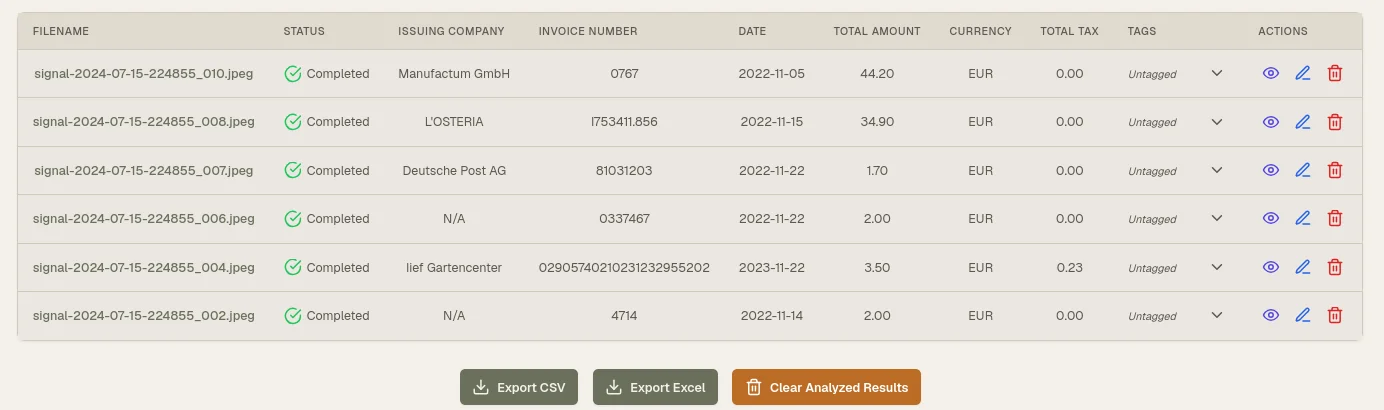
Every processed document lands as a row in a results table showing filename, status, issuing company, invoice date, and total amount. Click any row to open the Invoice Drawer, a full-screen panel with the original document image on the left and every extracted field on the right, editable in place, with no separate edit mode to toggle. If the engine couldn't confidently read one of eight critical fields (Invoice Number, Invoice Date, Total Cost, Currency, Issuing Company, Category, Short Description, or Line Items), the document is automatically flagged Needs Attention and dropped into a dedicated review queue, so incomplete records don't quietly slip through to export. Got a bad read on a document? Re-run analysis directly from the drawer. Glyf reprocesses the stored copy, no re-upload required, though there's a 10-second cooldown between re-runs on the same file and it counts as one analysis against your plan.
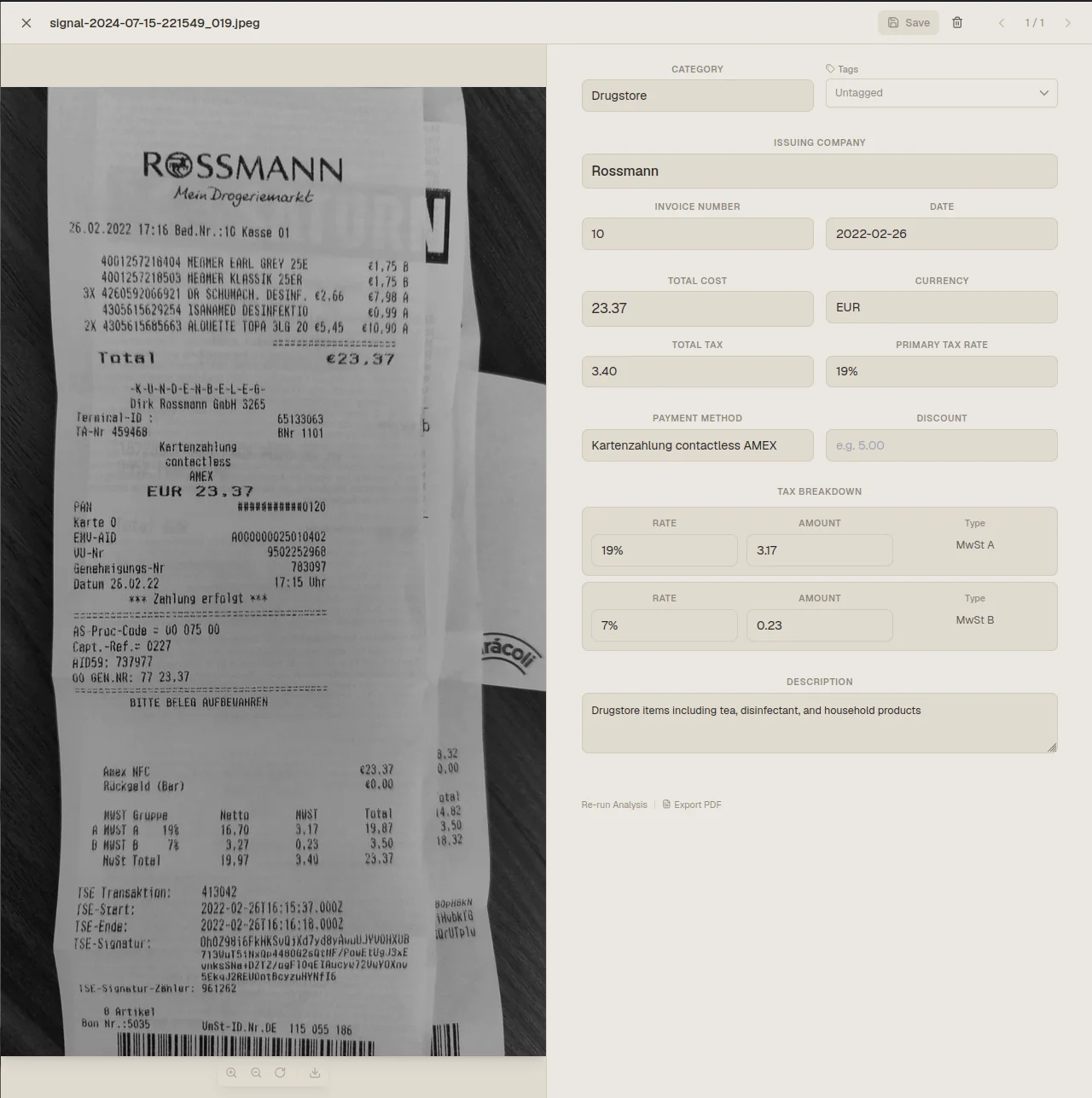
For the full correction workflow, including what triggers the flag and how saving works, read Review & correction flow.
Stage 4: Export
Once a batch looks clean, export in any combination, any time. Excel (.xlsx) gives you two sheets: Summary with one row per invoice, Line Items with one row per line item, all 12 fields plus tags included. CSV is flat, one row per line item, UTF-8 with BOM so Windows Excel doesn't mangle special characters. Images export as a ZIP of the stored document files. PDF Report puts a summary table on page one, followed by document images in a 2×2 grid with row numbers matching the summary table for cross-reference. After any export, Glyf stamps the record with a Last Exported timestamp in the history table, so you always know what's already gone out and what hasn't. What used to take an evening of manual entry usually takes minutes here. The extraction is fast; the review is where the real time goes, and that's by design.
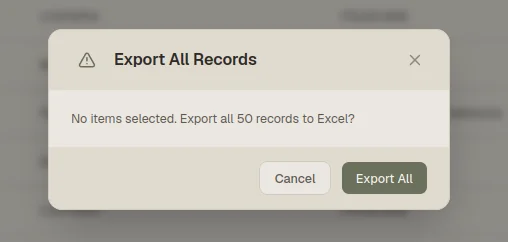
See the full sheet structure and column layout at Excel/CSV export.
Quick answers
How many files can I upload at once? Up to 5 per batch on Free Trial and Starter, up to 10 on Advanced. There's no limit on how many batches you run.
What happens if one file fails during extraction? Only that file shows an error. The rest of the batch finishes normally, and you can re-run the failed file on its own once you've fixed or replaced it.
Do I need to start from scratch to try this? No. Upload 3–5 real documents, review anything flagged Needs Attention, then export to Excel or CSV. Start with Free trial. No card required.
Can I switch plans if my batch sizes grow? Yes. Free Trial and Starter share the 5-file batch cap; moving to Advanced doubles it to 10 files without changing anything else about the workflow.