By Glyf
Duplicate Detection Signals
Five files land in the upload zone at once. Four are new. One is a receipt already run through Glyf last week, dragged back in because the folder wasn't sorted and nobody wants to eyeball twelve thumbnails to find the odd one out.
That's where duplicate invoice detection actually happens for most Glyf users. Not a background hunt through your whole archive. Right there in the upload queue, before a single file reaches extraction. This page covers what Glyf checks at that moment, and what you get afterward to compare anything that still looks alike once the batch is processed.
How duplicate invoice detection starts at upload
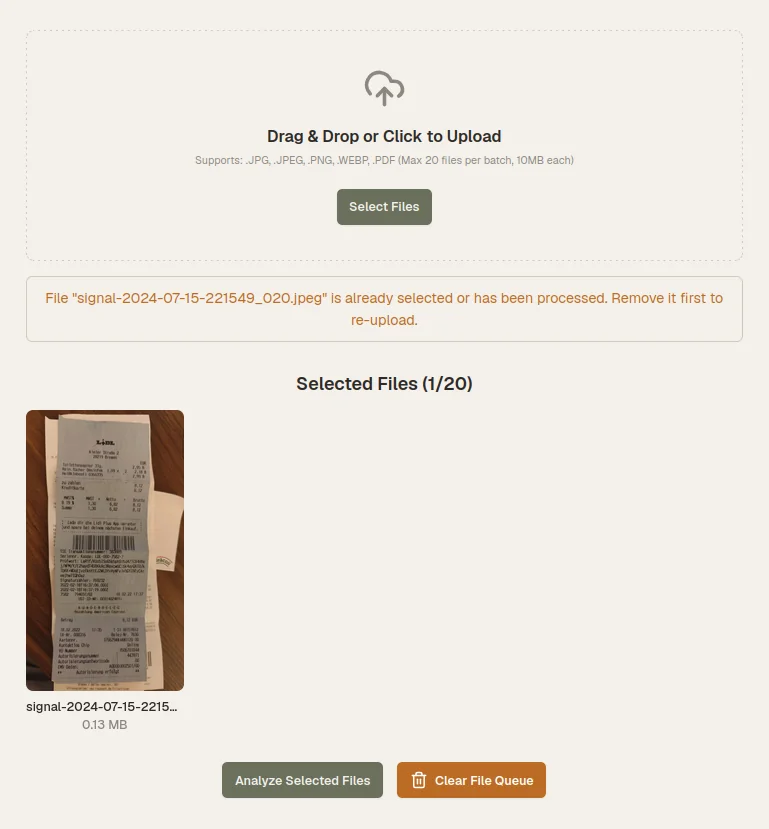
Every file you add gets checked immediately, in the browser, before anything is sent off for processing.
As soon as a file lands in the upload zone, Glyf validates it against three things: file type, file size, and whether the exact same file is already sitting in the queue. Add the same PDF twice by dragging it in from two different folders, or click "Select Files" and pick something you already added, and Glyf catches it before analysis starts. That validation runs ahead of the "Analyze" click, so a repeat file never burns one of your plan's analyses or shows up as a second row you have to spot later. It's a narrow check. It looks at the file itself, not the content of the receipt. But it's the cheapest possible place to stop a duplicate. Nothing to review, nothing to undo. The file just doesn't get added twice.
That's the first layer, and it's the one you rarely have to think about.
What the results table gives you to compare afterward
Not every repeat looks like the same file twice.
A receipt might get photographed once, then forwarded as a PDF from a different device. A shorter merchant name might come out of one scan and a fuller version out of another. Glyf's upload check can't catch that. The files genuinely are different. But once extraction finishes, you have real fields to compare instead of two thumbnails that look vaguely similar. Each row in the results table shows filename, status, issuing company, invoice date, and total amount. Most of the time, that's enough to notice two rows worth a second look before you open either one.
Comparing records with history and filters
Once a document is saved to your history, Glyf's filters do more of the comparing for you.
The Analysis History page lets you search by filename, company name, or invoice number, and narrow results by amount range, currency, or a specific date. If you suspect a receipt was uploaded twice weeks apart (once from a phone, once from an email forward), filtering history by vendor and amount surfaces both records next to each other rather than making you scroll the whole list. None of this happens automatically in the background; it's a set of filters you apply when something looks off. That's a deliberate tradeoff. Financial records have enough legitimate lookalikes (a monthly subscription, a recurring supplier charge) that a fully automatic "this is a duplicate" verdict would get things wrong often enough to create its own cleanup. Filters put the comparison in your hands instead.
Is a similar-looking record always a duplicate?
Not always, and that matters more than it sounds.
Two records can share the same vendor, the same total, even the same date, and still both be real: a repeat supplier charge, a split purchase, a subscription renewal. Glyf's Invoice Drawer opens the original document image next to every extracted field, so you can check invoice number, date, and line items side by side before deciding anything is actually a repeat. Every field in the drawer is directly editable, no separate edit mode, so if you do confirm a duplicate, you can correct or remove it on the spot instead of fixing it later in a spreadsheet.
Where duplicate detection fits in the wider workflow
Duplicate handling isn't a standalone tool. It's a byproduct of a workflow that gives you time to look before anything ships.
The upload check, the results table, and the searchable history all depend on the same Data Extraction Engine that turns each document into structured fields in the first place. If you're trying to build a repeatable process around catching repeats (not just clean up this one batch), the duplicate receipt detection guide walks through the habits that keep them from piling up in the first place. And if your focus is more on the monthly side of this, clearing repeats out before a recurring export, the monthly duplicate cleanup routine covers that end of it.
FAQ
Does Glyf automatically delete duplicate receipts? No. The upload check stops the exact same file from being added twice, but Glyf doesn't delete records automatically once they're extracted. Anything that looks similar afterward is still yours to review and remove.
Can Glyf catch a receipt that's been photographed twice? The upload check compares files, not receipt content, so two different photos of the same receipt will both go through extraction. Once processed, comparing them by vendor, date, and total in the results table or history filters is the fastest way to catch it.
What happens if I try to upload the same file twice in one batch? Glyf flags it during validation, before analysis starts, so it never counts against your plan's analyses and never shows up as a second row later.