By Glyf
Line Items & Tax Extraction
It's 9 p.m. and a 15-row invoice is open in one tab, a spreadsheet in the other. Description, quantity, unit price, line total. Type one, check it against the page, move to the next row. Three tax rates are mixed into the same document, so the tax column needs its own pass once the line items are done. Forty minutes later the invoice is entered, and there are eleven more just like it sitting in the folder.
Invoice line item extraction is the part basic extraction tools tend to skip, and it's exactly the part that eats an evening like that one. Grabbing the vendor, date, and total off a header is the easy 20% of the job. The line items and tax breakdown are the other 80%. And they're the part you actually need for reconciling expenses, categorizing purchases, or answering a question during a tax audit.
What invoice line item extraction actually returns
Our Data Extraction Engine reads the row structure of an invoice, not just the header fields sitting above it. For each line item detected, four data points come back: Description (what was purchased), Quantity (how many units), Unit price (cost per unit), and Line total (the amount shown for that row). This works whether the source is a clean digital PDF, a scanned document, or a photo of a paper invoice: the engine returns each detected row as structured fields rather than a wall of raw text you'd still parse by hand. Good invoice table extraction preserves the relationship between fields on each row, so a unit price stays tied to its own quantity and description instead of drifting loose once the data leaves the page.

How multi-rate tax gets split out instead of flattened
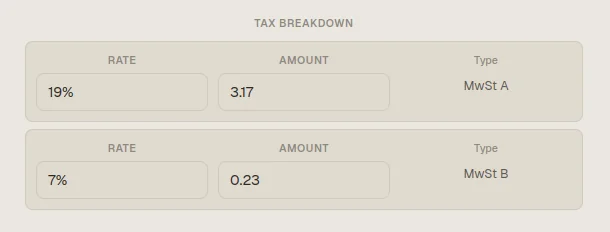
A single invoice can carry standard-rate VAT at 19%, a reduced rate at 7% on food items, and a zero-rated line, all on the same document. And collapsing that into one tax figure loses information you'll want later. Glyf extracts tax rate and tax amount separately for each rate present, rather than assuming one universal tax line per invoice. If a document carries three distinct rates, the extracted data returns three separate tax entries, each with its own rate and its own amount. That structure covers VAT, GST, sales tax, and the other formats different tax systems use, because the engine reads the labels and figures the document actually shows rather than forcing everything into a single assumed rate. When a rate genuinely can't be read with confidence, the field returns null instead of a guess: a smaller, more honest gap than a wrong number sitting quietly in an export.
Where line items land once they're extracted
Line items don't stay locked inside the extraction screen. They carry through to review and export. In the Invoice Drawer, you review tax values, totals, and every line item alongside the original document image, editing anything that needs a correction before it moves on. If a document has no line items at all, or any single row is missing its description or total, it gets flagged as Needs Attention so it doesn't slip through incomplete. When you export to Excel or CSV, line items get their own dedicated sheet: one row per line item, with the parent invoice reference carried on each row. CSV flattens that structure into a single file, one row per item, ready for import into accounting software.
Is a document without clean line items still worth extracting?
Not every receipt or invoice arrives with a tidy, itemized table, and line item extraction is still useful even when the source is messy. A blurry photo of a torn receipt might yield three readable line items out of five; a simple invoice might carry no itemization at all beyond a single total. In either case, whatever rows the engine can read with confidence come back as structured data, and anything it can't extract with confidence (a missing description, a torn-off total) triggers the Needs Attention flag rather than a silent guess. That's a deliberate tradeoff: partial, honest structured data plus a clear signal of what's missing beats a fabricated full table that looks complete but isn't. For the fuller picture of how flagged documents move through review, see Confidence & review thresholds.
From a stack of invoices to a clean export
Upload PDFs, images, or receipt photos in a batch. The engine extracts all 12 fields per document, including line item rows and the full tax breakdown. Review results in the Invoice Drawer, correcting anything inline. Export to Excel for a Summary sheet plus a dedicated Line Items sheet, or to CSV for a single flattened file ready for bookkeeping software. What used to take an evening of typing becomes a short review pass: over 95% extraction accuracy on standard invoices and receipts means most of that pass is confirmation, not correction. A free trial with 15 analyses is enough to see how it handles your own invoices before committing to a plan.
Why line items matter more than the total line
Plenty of tools grab the total and stop there, leaving you to pull line-level detail by hand the moment your accountant or an auditor asks for it. Treating line items and tax entries as structured data from the start means that question already has an answer in your history table. For tax-specific detail on identifiers that sit alongside line items on many invoices, see VAT and tax ID capture. For receipt-specific extraction quirks (tips, itemized restaurant checks, and similar edge cases), see Intelligent extraction for receipts.
FAQ
Does Glyf extract line items from handwritten receipts? It can, where the handwriting is legible enough to read with confidence. Rows that can't be read clearly are left out rather than guessed, and a document missing line item detail gets flagged for review.
What happens if an invoice has more tax rates than a typical document? Each rate present gets its own entry in the extracted data. Glyf doesn't cap the number of tax lines it returns or force multiple rates into one combined figure.
Do line items show up in every export format? Excel and CSV both include full line item detail, with Excel using a dedicated Line Items sheet and CSV flattening to one row per item. PDF reports focus on the summary table and document images instead.