By Glyf
Export QA Checks
Export is where “almost correct” becomes a spreadsheet problem.
This is a fast pre-export checklist to make sure your Excel/CSV/PDF output is clean, complete, and easy to use (or hand off).
Before you export: 5 things to check
1) Check for error rows
In the results table, look at the Status column.
Any row marked Error will export with an error status and no extracted data fields.
Before exporting:
- Re-run analysis on error documents to attempt recovery, or
- Deselect error rows so they’re excluded from the export
(Need the exact review/retry flow? See: Review & correction flow)
2) Clear the Needs Attention queue
Documents flagged as Needs Attention have one or more blank critical fields. If you export them as-is, you’ll get empty columns where data should be.
To get a complete export:
- Go to Analysis History → filter by “Needs Attention”
- Open each flagged document in the drawer, fill in missing fields, and Save
3) Spot-check extracted fields
Even on successful extractions, a quick spot-check is worth it—especially for:
- unusual layouts
- handwritten notes
- non-standard tax formats
Open a few documents in the drawer, verify the fields, and correct anything misread before exporting.
4) Apply tags before exporting
Tags are included in all export formats (Excel, CSV, PDF).
If you categorize expenses using tags (e.g., “Travel,” “Office Supplies,” “Client Entertainment”), apply them first so they show up in your output exactly where you need them.
5) Filter by currency if needed
If you’re exporting for a single-currency report, filter the history table by currency first.
Exports don’t automatically separate or convert mixed currencies. Filtering ensures the export includes only the records you need.
What each export format contains
| Format | What’s inside |
|---|---|
| Excel (.xlsx) | Two sheets: Summary (one row per invoice, all invoice-level fields) and Line Items (one row per line item, with parent invoice info included on each row). |
| CSV | Flat format: one row per line item. UTF-8 encoded for compatibility with Windows, Mac, and major accounting tools. |
| Images (.zip) | All stored document images in a ZIP. If any images are unavailable, a text file listing missing files is included in the ZIP. |
| PDF Report | Page 1: summary table (Date, Vendor, Amount, Category, Tags, Description). Following pages: document images in a 2×2 grid, with row numbers matching the summary table. |
For format-specific details and export options, see: Excel/CSV export
After exporting
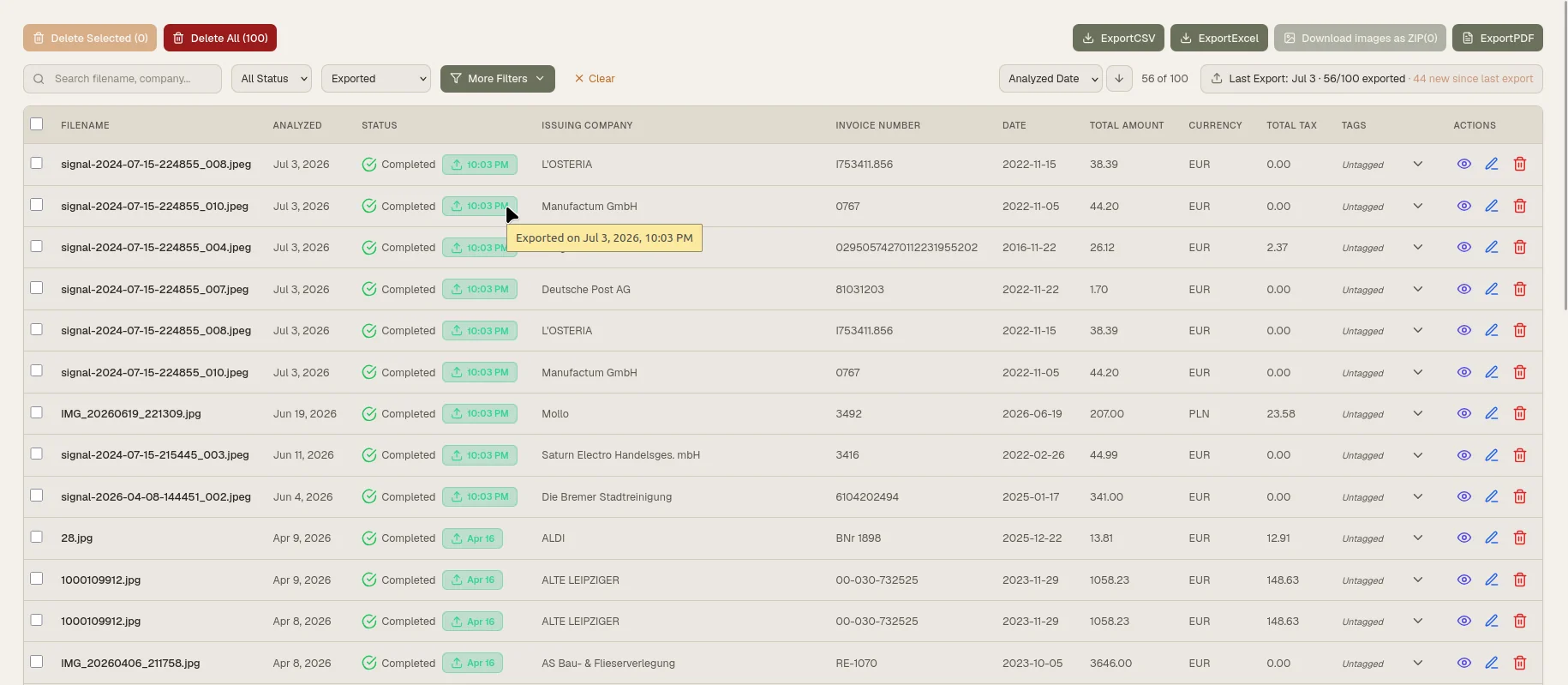
- A Last Exported timestamp appears on each record in the history table
- For image ZIP and PDF exports, a notification appears in the bell icon confirming what was downloaded
- All export actions are recorded automatically for audit and customer support purposes
(No PII is logged — only the export action itself.)
Make your free tier count
If you’re testing the free tier and want to get to a “real” spreadsheet-ready export quickly, this checklist helps.