By Glyf
Expense Processing for Small Business Owners
Glyf exists because of a shoebox, more or less. My wife turned two hobbies into online shops a few years back, and I became the back-office person by default: Shopify, suppliers, packaging, the works. It was fine until the German tax office asked for every receipt and invoice going back years, and we realized we had no system at all. Just PDFs in an inbox, a few handwritten notes, and bank statements we spent close to three weeks manually matching by hand.
I tried roughly six other tools before building Glyf. Some were SAP-level overkill for a side business. Others were UI disasters that made typing things manually feel faster. None of them just did the job: read the document, pull out what matters, let us move on. So we built the real version, the one made for expense processing for small business owners who are also doing everything else in the business.
Why expense processing for small business owners feels different
Nobody's paperwork breaks because of one impossible task. It breaks because fifty small ones stack up quietly. A supplier PDF lands in your inbox. A receipt gets photographed on your phone at a hardware store. A shipping invoice shows up three weeks after the shipment, because that's apparently how shipping invoices work. Each one takes thirty seconds to deal with properly and you tell yourself you'll batch them later. Later becomes month-end. Or the week before your accountant needs everything. That gap between "I'll sort it later" and the actual filing deadline is where most small business owners start looking seriously at how to organize receipts for taxes instead of just promising themselves they'll get to it.
How the dashboard fits into a normal week
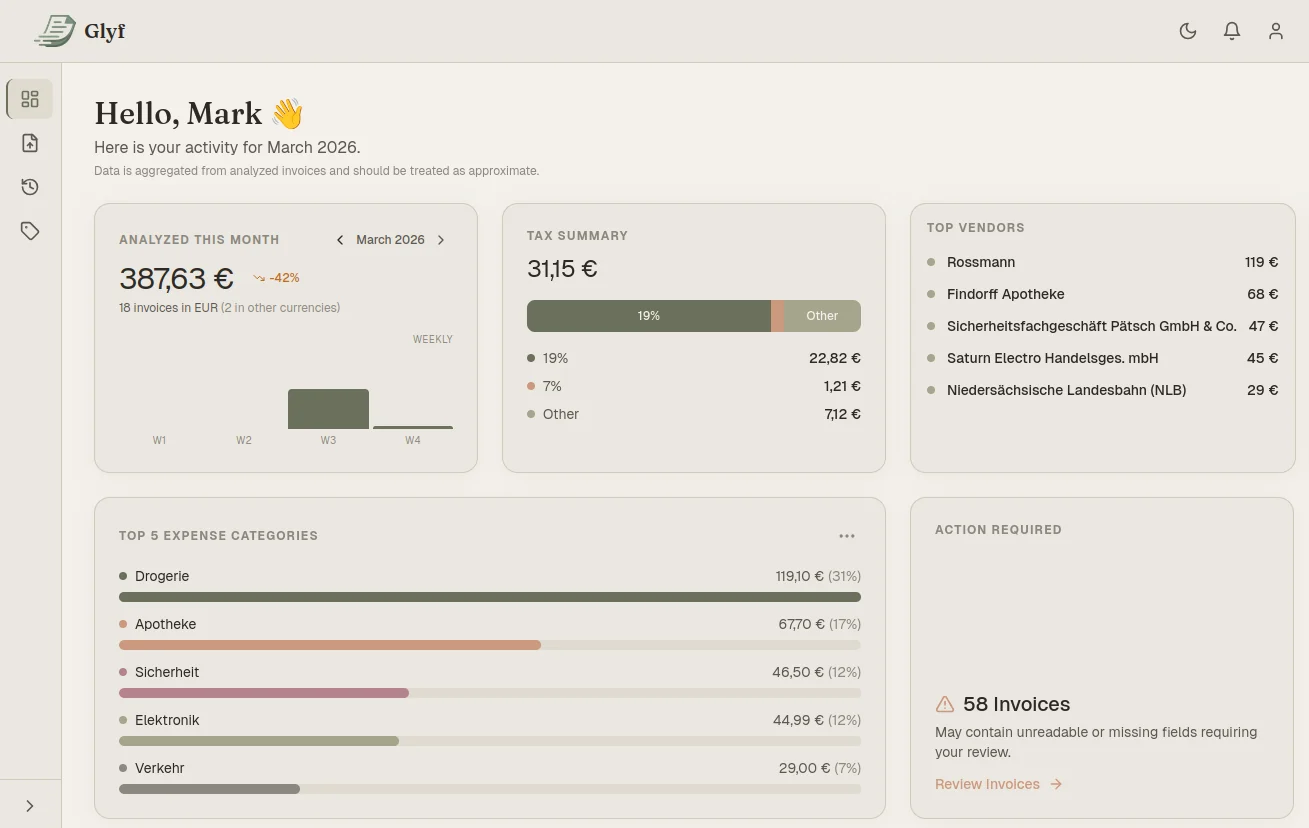
The dashboard is meant to answer one question fast: what's sitting here that still needs something from me? Every uploaded document lands in your private history with the extracted fields already filled in: vendor, date, total, tax, line items when they're present and legible. If something couldn't be read confidently, it's flagged Needs Attention and shows up in its own queue instead of getting buried in a long list. On a Tuesday morning, that means opening the dashboard, clearing three or four flagged documents in the Invoice Drawer where the original image sits next to the editable fields, and moving on with your actual work. It's a five-minute habit, not a project.
Search, tags, and finding things again later
Organization only counts if you can find something six months from now. Documents you upload get saved automatically, searchable by vendor, date, amount, or keyword, with unlimited storage even on the free tier. Tags let you group expenses the way your bookkeeping actually needs (Travel, Office Supplies, Client Reimbursable, whatever fits) and filtering by tag turns a long history list into exactly the subset you're after. That combination is what makes a request like "show me every supplier invoice from March" a thirty-second filter instead of a folder-by-folder search across three different places you might have saved something.
Getting ready for tax season without the scramble
Tax season doesn't create the mess. It just forces you to look at it. A few missing receipts here, an unsorted invoice there, and suddenly you're reconstructing months of purchases from your email, your downloads folder, and a drawer you've been ignoring. The fix isn't a bigger folder structure. It's dealing with documents close to when they arrive: upload as you go, clear the Needs Attention queue in small batches, and let search and tags do the retrieval work later instead of your memory. For the deeper version of this workflow, see Faster tax season prep.
From receipts and invoices to a usable spreadsheet
Most small business owners don't need a new back office. They need receipts and invoices to land in Excel without rebuilding the sheet by hand every time. Export gives you a Summary sheet (one row per document) and a Line Items sheet with one row per line item, which is a meaningfully cleaner structure than one flattened export you have to untangle later. Each exported record gets a Last Exported timestamp, so you know at a glance what's already gone to your bookkeeper and what hasn't. See the column layout at Excel & CSV export.
A typical batch, start to finish
- Gather what's piled up: PDFs, photos, whatever format they arrived in
- Upload up to 5 files at once on the Free Trial or Starter plan (10 on Advanced)
- Review anything flagged Needs Attention in the Invoice Drawer
- Tag and search so records stay findable later
- Export to Excel or CSV when you're ready to hand off or file
Quick answers
Do I need to change how I collect receipts first? No. Keep saving them the way you already do (email attachments, downloaded PDFs, phone photos) and upload the mix as-is. Glyf validates format and size before anything is processed.
What if I only have time to deal with this once a month? That's still enough. A monthly batch upload, a quick pass through the Needs Attention queue, and an export covers most small business review cycles without turning into a daily chore.
Start with a real batch
Reading about a workflow only tells you so much. Grab whatever's piled up right now (a few PDFs, a couple of photographed receipts) and run them through Smart Expense Extractor, or jump straight to Try Glyf free for 15 analyses with no card required.