By Glyf
Supported Files (PDFs, Images, Photos)
Glyf can extract data from receipt images, handle pdf invoice extraction, and read receipt photo extraction from your phone, without templates or setup.
This page covers:
- what files are supported
- practical limits (so you don't get surprised)
- quality tips that improve results fast
For the full workflow, see: How it works
Supported File Types
PDFs
Best for:
- digital invoices
- emailed receipts
- downloadable supplier invoices
Glyf supports scanned invoice extraction inside PDFs as well (the classic "paper invoice → scan → PDF" workflow).
Images
Best for:
- receipt photos
- screenshots of receipts/invoices
- scanned documents saved as images
Common supported image formats include:
- JPG / JPEG
- PNG
- WEBP
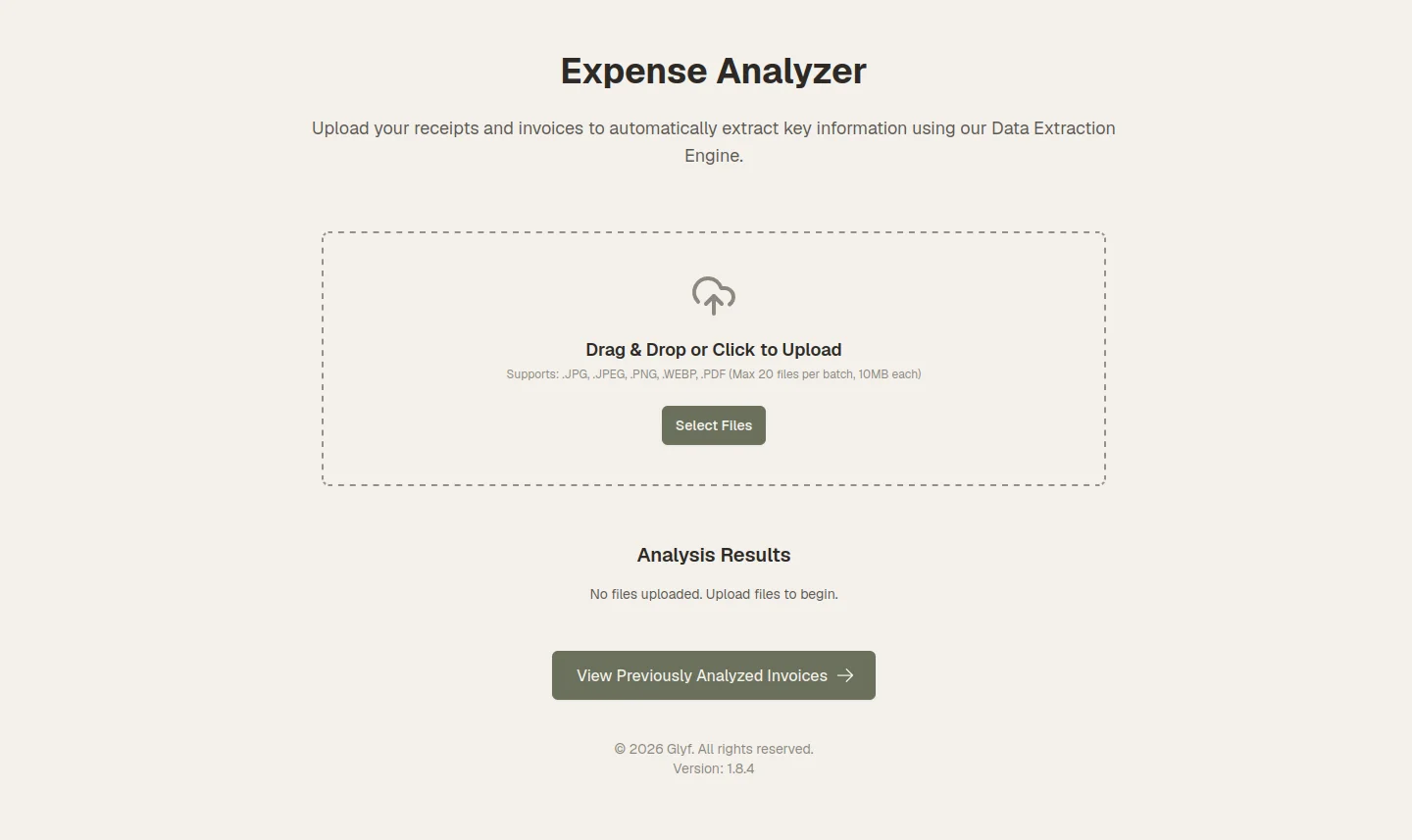
If you're unsure, upload it. The app will tell you immediately if it's unsupported.
What "Receipt Photo Extraction" Needs to Work Well
Phone photos are totally fine, but a few tiny improvements make a big difference.
Quick quality checklist (30 seconds)
- Keep the receipt flat (no curled edges if possible)
- Make sure text is in focus (tap to focus before shooting)
- Avoid harsh glare (angle the phone slightly)
- Include the whole receipt (top + bottom edges visible)
- Use good light (near a window beats a dark kitchen)
For a dedicated guide:
Practical Limits (Capability + Reality)
Glyf is built for real-world receipts and invoices, but there are limits worth knowing.
Multi-page PDFs
- Multi-page invoices are supported.
- If pages contain different layouts, extraction may vary by page.
Very large files
- Glyf supports files up to 10MB. Which is more than enough for most use cases.
- If you have a file larger than 10MB, please convert it to a smaller file before uploading.
Low-quality scans and "receipt archaeology"
Faded ink, crumpled paper, and thermal receipts from 2017 might still work, but they're harder. You must ensure that the text is legible and that the receipt is not damaged.
If your inputs are rough, these guides help:
What Usually Causes Bad Results
If extraction looks off, it's almost always one of these:
- motion blur (camera shake)
- glare covering totals or VAT
- cropped edges (missing vendor or total)
- tiny text (too far away)
- heavily wrinkled receipts breaking line structure
The fix is usually simple: re-photo, flatten, brighten, rescan, or double check after analysis.
Best "Golden Path" Workflow
If you want the smoothest experience:
- Use PDFs for invoices when available
- Use phone photos for receipts (well lit, in focus)
- Upload in batches
- Review quickly
- Export to Excel/CSV
Full step-by-step: How it works